Showing posts with label Wireless. Show all posts

Monday, November 12, 2012

Moving to Ethernet over Power


It has been awhile since I last posted, been busy with other commitments.
In this post, I would like to share some recent modifications I made to my home networking.
Motivation
The original intention was to improve the Wifi performance at home. 
Originally, my laptop (in the study) is covered by the living room's Wifi coverage. 
Whenever I watch online TV or backup its files, my whole place's Wifi connection grinds to a halt. Also, the iPad is rendered useless.
The logical approach would be upgrading all my devices to 802.11n, but it is quite a substantial investment considering my laptop is a four years old Sony VAIO and I still use my iPhone 3GS, both supporting  only 802.11g. 
Also, I tried enabling DLNA on a 802.11n smartphone and streamed it to the WDTV media player. It just repeatingly halted. 
I felt there has to be a better option. 
Setup and two use cases
In large, there are three areas being connected: living area (wifi router), study and the storage room. The idea is to dedicate the Wifi signals to the portable devices (e.g. iPad, iPhone with no SIM).
In parallel, all the "non-internet" traffic are to be carried across the home's power line.
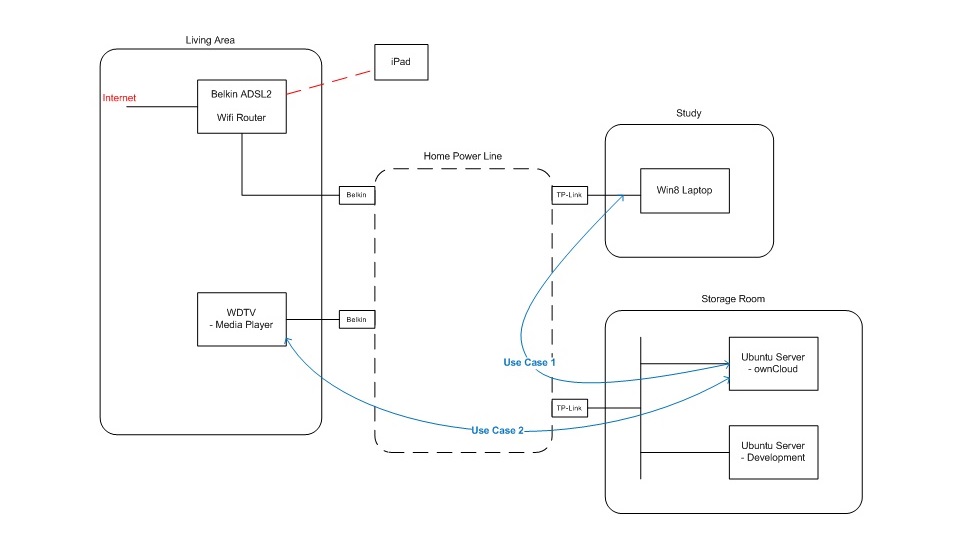
  • (1) For example, I am using ownCloud to backup my photos and personal documents from my laptop (as illustrated by the blue line, "Use Case 1")
  • (2) Likewise, if I would like to display my photos on the LED TV via WDTV media player, then I can share it from either my Laptop or ownCloud (DLNA enabled) – once again, all traffic through the Power line ("Use Case 2".
While all these happen. I can still use my iPad to happily browse the internet (red line), simply because the Belkin Wifi Router is not involved in these use cases.
Some details
If you look at the diagram more closely, there are several small boxes attached to the “Home Power Line” cloud in the center. These are the EoPs' plugs. Their models are Belkin Powerline AV (F5D4070) and TP-Link TL PA-201 respectively. 

This Belkin's support page article describes powerline adapters compatibility. By large, there two standards in the market today. HP 1.0 and HP AV. 

My working combination of Belkin and TP-Link are running on the older Home Plug 1.0 standard. This standard supports up to 85Mbps throughput. 

Originally, I bought a newer pair of Belkins Homeplug AV running on HPAV standard. Unfortunately, these newer plugs cannot detect other HP1.0 devices over the power line.

Further technical details
  • The people on Whirlpool forum have done a much better job than myself analyzing Ethernet over Power products available in the market. It’s worth a read if you are considering using it for your home.
  • I am no electrical engineer, but I do suspect my results may have to do with multiple phases and circuits, as detailed in this Intellon Whitepaper. Cross phase coupling is still good technical information.

Glad to hear what you think or your experiences.

Monday, May 9, 2011

On Netgear WNR2000 Wifi Router (for Linksys ATA and Iomega NAS to work)

It has been almost 6 months since my last post... I believe I have collected sufficient information from using the Netgear WNR2000 wifi router for another post. By the way, this router is 3 years old and was released back in June 2008 (http://routers.productwiki.com/netgear-wnr2000/).

I purchased a Linksys ATA device and in the process of getting it work behind the Netgear router, there were several interesting findings with regards to the port-forwarding settings:
1. Using WNR2000 default settings, the Linksys ATA could only make out-going phone calls. Incoming phone calls resulted in a "person you are trying to call is unavailable..." message, despite successful SIP registration.
2. Netgear WNR2000 port forwarding settings only came into effect AFTER the router rebooted.
3. F.Y.I. I configured static IP address on the Linksys ATA device (which, by the way, only comes into effect after disabling DHCP on Linksys ATA)
The following Port Forwarding rules were referenced from another post, and the rule numbers on WNR2000 MATTERS. Have them configured the other way around and incoming calls would't work.

Rule 1: Permit UDP 5060, Linksys ATA static IP
Rule 2: Permit UDP 16384 - 16482, Linksys ATA static IP


I also own an Iomega NAS (with an Ethernet port). Interesting enough, everytime after I restarted my laptop, the NAS' share drives were no longer visible (The laptop connects to the same Netgear AP which the NAS is also connected to through a CAT5e). Out of interest, Wireshark capture indicated that when Iomega started up, it first multicasts MDNS queries (port 5353 rather than UDP 53 for standard DNS).
This was then followed by exchanging SMB messages (TCP 445) between the laptop and NAS. While I am no expert in SMB, I recall reading messages annoucing each of the shared directories.
As such, it would appear either the NAS stopped annoucing these messages after the TCP connection timed out (due to laptop restart), or the wireless router stopped new TCP sessions from being established.
The only workaround was to restart the wifi router. Afterwards, the NAS shared drives would magically become visible from my laptop again.


P.S. This morning the Netgear router finally gave in after several restarts. Both my laptop and iPhone had difficulty connecting to the AP. As a result, I have replaced this router with a TP-Link TL-WR740. Upgraded this box to the latest firmware and so far so good... the Linksys ATA was a matter of simply plug-and-play while the IP NAS has remained visible so far... perhaps I shall have more to add after another couple of months.

P.P.S. For convenience, the dialplan on the Linksys ATA has been simplified from
# Original dialplan, local calls only

(*xx|[3469]11|0|00|[2-9]xxxxxx|1xxx[2-9]xxxxxxS0|xxxxxxxxxxxx|<#0:>xx.<:@gw0>.)

To
# For dialing everything
(*xx|xxx.)


Monday, March 29, 2010

Converting WiFi Adapter into 802.11g Access Point (WPA2-PSK) on FreeBSD

I originally had an ASUS WL500g Premium running on DD-WRT (released back in 2006), configured as Access Point with DHCP forwarding enabled. This allowed my laptops and iPhone at home to connect to this AP and automatically connect to the internet through BSD gateway.

I bricked this WiFi router when I did a software upgrade. At the same time, I also have two other WiFi routers at home - NetGear WNR2000 and TP-Link TL-WR740N. Both cannot be configured as WiFi Ethernet Bridge, nor have DHCP forwarding options. Also, there's no DD-WRT support.

I do not wish to add another layer of NAT for my home network, so I purchased the most economical WiFi Adapter I could find and convert it into a WiFi access point. The Adapter is TP-Link TL-WN851N (onboard PCI), running on Atheros 9280 chipset.


Configuring WiFi Access Point
From memory, the necessary kernel options for Atheros driver are already present in GENERIC file by default, so probably no further work was required... there is a chapter in FreeBSD handbook on "Wireless Network" for reference. http://www.freebsd.org/doc/handbook/network-wireless.html


Afterwards, I installed the hardware, startup BSD and the WiFi adapter was correctly recognized as "ath0":
ath0: (Atheros 9280) mem 0xfc500000-0xfc50ffff irq 5 at device 4.0 on pci5
ath0: [ITHREAD]
ath0: AR9280 mac 128.2 RF5133 phy 13.0

Then I proceeded to configure it. It was when I noted the system wouldn't allow me to provision any parameters using "ifconfig ath0". Did some research online and noted in FreeBSD 8.0, a virtual device (wlan0) has to be created prior to provisioning any WiFi configuration... which is different from previous BSD releases [http://forums.freebsd.org/showthread.php?t=11978].

Here is how I created my pseudo wireless device, wlan0. I also needed to set the option "wlanmode hostap" for it to be created as access point:
# ifconfig wlan0 create wlandev ath0 wlanmode hostap

Setting the AP to be WPA-PSK mode requires hostapd. There is an rc.d script to start this. My configuration file "/etc/hostapd.conf" is as follows:
interface=wlan0
debug=1
ctrl_interface=/var/run/hostapd
ctrl_interface_group=0
ssid=(your-ssid)
country_code=AU
hw_mode=g # I tried setting this to 802.11n, but encountered some error.
channel=0
basic_rates=60 120 240
wpa=1
wpa_passphrase=(wifi-passphrase)
wpa_key_mgmt=WPA-PSK
wpa_pairwise=TKIP CCMP

Finally, set IP interface on wlan0 and update DHCP daemon, along with other services to listen on this interface.

To startup this service when system boots, add the following to "/etc/rc.conf" file
wlans_ath0="wlan0"
create_args_wlan0="wlanmode hostap"
hostapd_enable="YES"
ifconfig_wlan0="inet 192.168.2.1 netmask 255.255.255.0 up" # Gateway

So this is how to set your WiFi adapter to become a Wireless Access Point.


After Thoughts - Usage Notes
Having used this for awhile, I must admit it is not as stable as having a dedicated Wireless router. The wireless connection would drop occassionally while "dmesg" kept displaying the message "ath0: stuck beacon; resetting (bmiss count 4)".

I found this wikipage dedicated to the stuck beacon issue. [http://madwifi-project.org/wiki/StuckBeacon]. While I have not resolved the root cause, the issue has been mitigated through running the sysctl variable: net.wlan.0.bmiss_max: 2 -> 10

Here with my setup today... 


[Jan 2012] An additional note: this wireless setting supports WPA authentication, but not WPA2 authentication.